SEGRO Courses
Home | Excel | Power BI | Copilot | Visualising Data
Power BI Modern Features Course Notes
Improvements to visuals
There have been many improvements to Power BI visuals over the last year or so. These include:
- a new card visual
- a new button slicer
- some different style of bars: e.g. outline rather than solid. For example use solid for actuals and outline for forecast
- better data labels: add trend as well as value
- line charts: leader lines, smoothed and stepped lines
- sparklines
In this session, there is quick demo of some of these improvements and a guided tutorial on the new card visual.
The New Card Visual
Microsoft telemetry shows that the card visual is the most popular visual used in Power BI reports.
The old card visual has one big disadvantage in that it can only show one number, without any context. The new card solves this by enabling us to have detail metrics that put the headline figure into context, for example
- what is the change since last year?
- how far is this above a certain threshold?
The new card visual has many more formatting options and many more dynamic capabilities (visual properties that can be set by a DAX calculation).
The Microsoft team building these has announced delivery in several phases
- (June 2023) multi-cards, layout features, dynamic formats
- (Nov 2023) reference labels
- actions
- trends
- small multiples
The new card will eventually replace three existing visuals: the old card, KPI and multi-card visuals.
This snapshot compares the old and new charts. The new chart has the reference labels to add context to the headline value (the callout value).
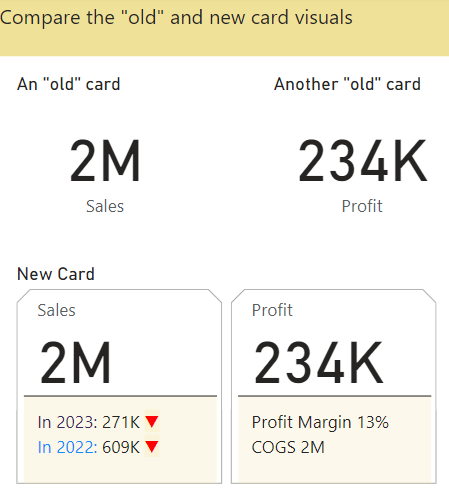
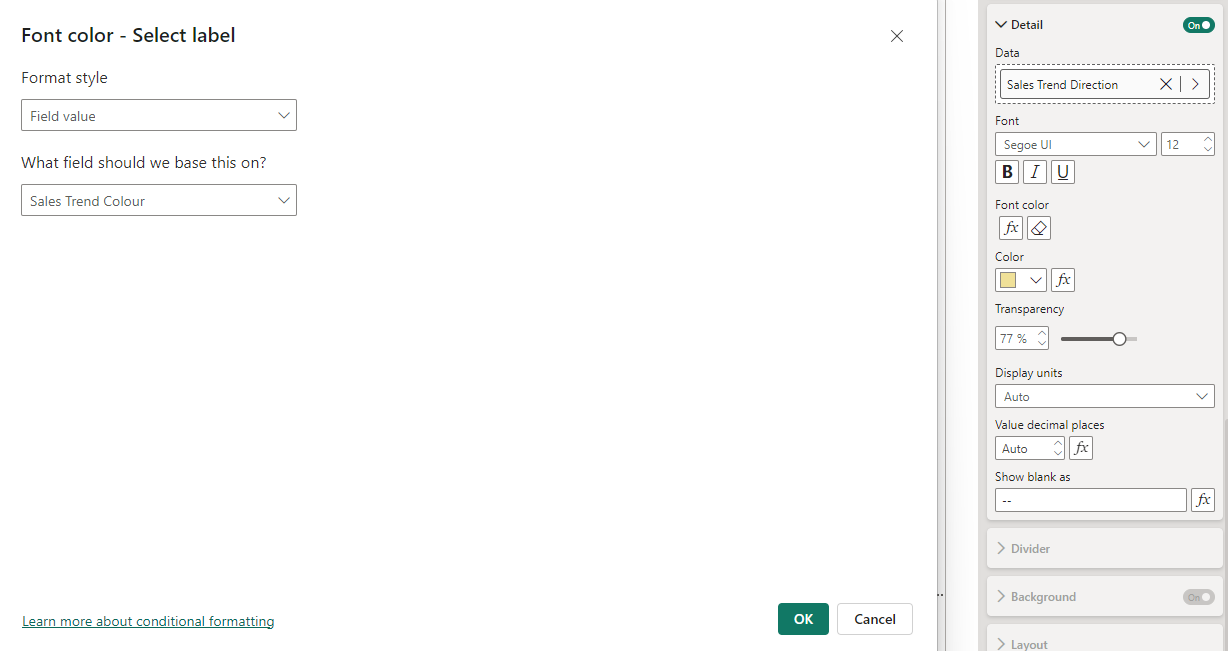
The new card is really a collection of cards. The first card, titled Sales, has two reference labels (for 2022 and 2023). The reference label is made up of three parts; a title, value and detail component. Each of these parts has many dynamic properties. For example, the detail has a data property that is assigned to the [Sales Trend Direction] measure and a font colour property that is set to the [Sales Trend Colour] measure.
Introduction To visual calculations
Visual calculations provide an easier way to write typical calculations, such as running totals, than DAX measures.
| The new visual level format strings, under Properties | Data Formats, released Aug 2024, now can be applied to visual calculations – so now there is a way to format these properly! |
Visual Calculations - Specification
A visual calculation belongs to a single visual. It cannot be used from any other visual.
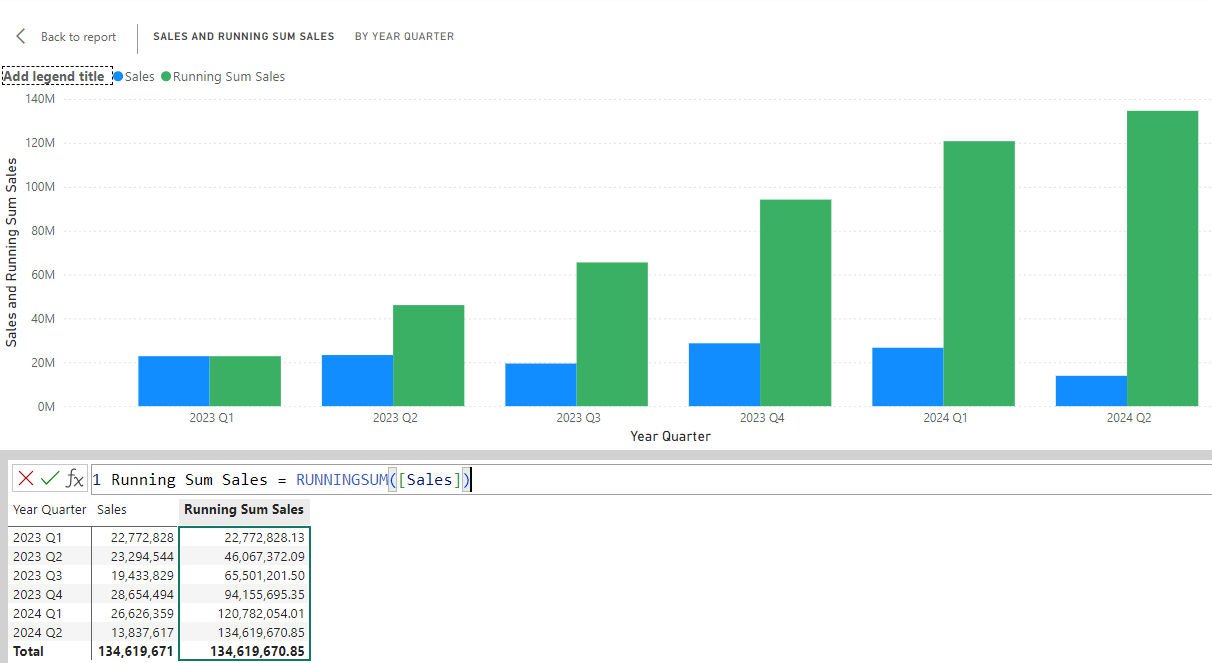
Visual Calculations are simple DAX calculations defined on a specific visual. They can refer to fields on the visual. They are executed in the scope of the visual.
When creating visual calculations, Power BI Desktop shows a visual matrix. This has the data in the visual arranged with rows / columns.
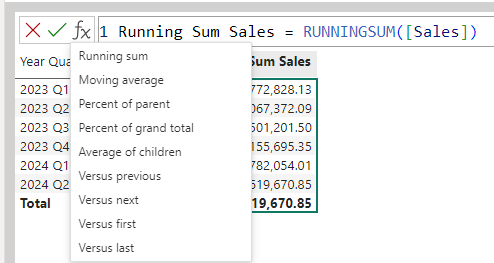
There is a standard template for typical calculations so no need to write any DAX - just point and click. These typical calculations include:
- running sum
- moving average
- change on previous / next / first / last
- percentage of parent
- percentage of grand total
The performance is better then measures, since visual calculations run on aggregated data.
The importance of visual calcs
It is difficult to build good measures for even typical business calculations. This is true even for calculations like running totals that are easy in Excel. People have to understand how filter context and row context applies. These are hard concepts, requiring a lot of practice to master. Visual Calculations solve this problem. People can write these calculations with simple DAX or just point and click for many situations.
A few people suggest that visual calculations may have unintended consequences for Power BI good practices.
- Measures: write once, use everywhere
- Visual calcs: write every time, use once
More about visual calculations
There are some new high level DAX visual functions:
- RUNNINGSUM()
- MOVINGAVERAGE()
- Positional: FIRST(), PREVIOUS(), NEXT(), LAST()
- Functions to expand/collapse groups if there are more than two or more fields in rows area: EXPAND(), EXPANDALL(), COLLAPSE(), COLLAPSEALL()
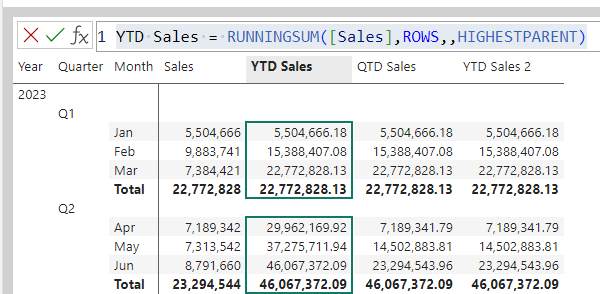
These allow us to create time intelligence functions more simply than with measures. For example, a Year-To-Date function:
YTD Sales = RUNNINGSUM([Sales],ROWS,,HIGHESTPARENT)
DAX Query View
When we have to write DAX measures, the new DAX query view provides a much more productive environment than the old “formula bar” approach. The DAX Query View is a proper script editor.
This section covers:
- an introduction to the DAX query view and how it changes the “flow” of how we build measures,
- the EVALUATE statement that starts all our DAX queries,
- the SUMMARIZECOLUMNS() function, the starting point for most queries,
- how to DEFINE a measure and add it to the model,
- the best approach to building measures using the DAX query view,
- the quick queries, e.g. define all measure in the model
The design of the Query Editor has three touches of genius
- Quick queries: these avoid the “blank page” trap, helps learn DAX
- Update model: keep in the “zone”
- Run DAX query for visual: helps understand DAX and Power BI at adeeper level
The benefits are not immediately obvious but are profound (so stick with it until it become second nature)
Walkthrough
In interactive sessions this will be a live demo.
Here is a typical short query run in the DAX query View.
- the DAX query view always returns a table
- the EVALUATE is always necessary
- the top half is an editing pane and the botton half is the results pane

We can use variables to make the DAX more readable. Notice the DEFINE VAR syntax.

The Performance Analyser Pane has a “Run in DAX query view” button to show and run the DAX that a visual, in this case the bar chart, uses to obtain its data.

Power BI visuals use the SUMMARIZECOLUMNS() function to return the data they need

Quick queries allows us to define all measures. The DAX query view generated the DAX. Note
- the DEFINE MEASURE syntax
- the use of the SUMMARIZECOLUMNS() function. This is a very powerful function.

This is often a good starting point for creating new measures and adding them to the model. For example, we have extended this to create and test two new measures. Notice that:
- the two measures (Profit and COGS) are currently defined only as part of the query. They are not yet part of the model until we click on the ‘Update model with changes’ button.
- the SUMMARIZECOLUMNS() has a new argument so that it creates a row for each country

Once updated, the new measures are now in the model.

Using Copilot to help with DAX
DAX is the data modelling and calculation language of Power BI. We can use an Copilot such as Copilot, together with the DAX query view in Power BI Desktop, to help us write our DAX queries and measures. This can also be a great way of learning DAX.
Getting started with this exercise
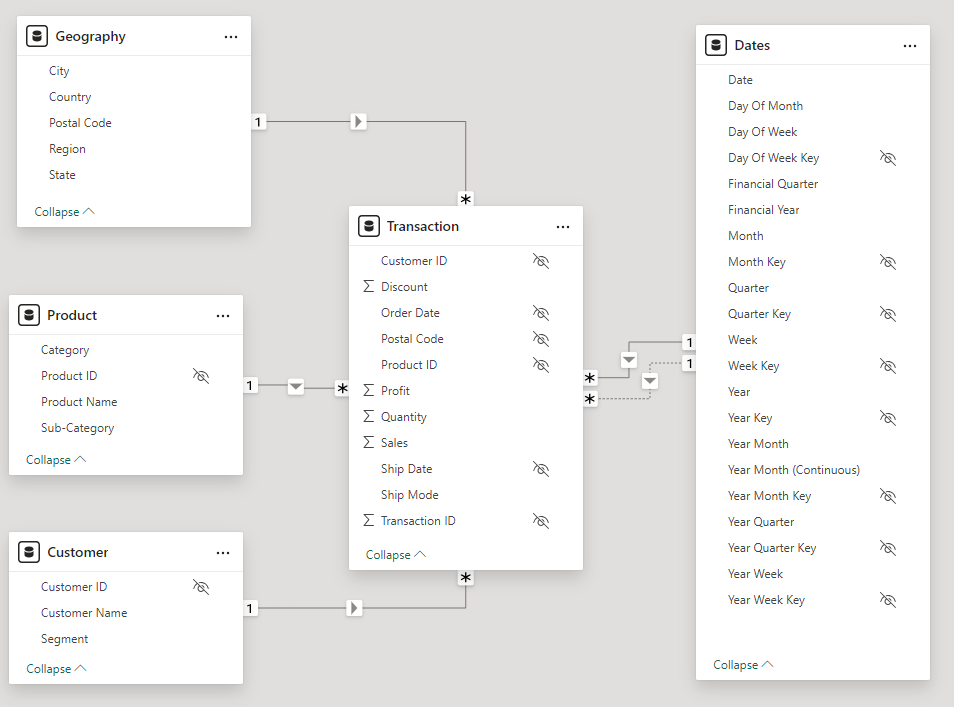
In this exercise, we ask Copilot to write DAX queries and measures based on a Power BI Data model that uses fictional data and has a standard star schema data model. This is the model view.
- Launch Power BI Desktop
- In Preview features, enable DAX Query View (if it is still a Preview feature in your version)
- Download this Power BI file and open it in Power BI Desktop.
- The Power BI file contains a standard star schema data model.Review the data model, the table and column names, relationships etc. Consider what DAX measures you would add to this model.
Ask Copilot to generate DAX queries and define measures
Here are a set of prompts you can use to ask Copilot to generate DAX queries. Use these as a starting point. You may want to copy the response to each prompt into a new tab in the query view and add the initial prompt as a comment
The initial prompt refers to the image of a data model, shown above. You can download it from here
Prompt: Act as an expert in writing DAX queries. I will provide you with an image of a Power BI data model then ask you to write queries based on that model.
Prompt: Write a query to show Sales by Region
Prompt: Rephrase the query for use in the DAX query view. Start the query with EVALUATE and use SUMMARIZECOLUMNS rather than SUMMARIZE.
Prompt: Enclose all table names in single quotes in future code examples.
Prompt: Rephrase the query to define the Total Sales measure before the EVALUATE.
Prompt: The data model now has a table named Calcs to hold all our measures. Rephrase the query above so that the Total Sales measure is in the Calcs table.
Prompt: Please write query to define the measure as ‘Sales’ rather than ‘Total Sales’
Prompt: Write a query to define Profit and Quantity measures in a similar way
Prompt: Assume now that I have added the Sales, Quantity and Profit measures to the data model. Write a query to define then use a measure named COGS. The calculation is Sales - Profit
Prompt: Write a query to define a measure ‘Number of Transactions’
There is a shared Copilot conversation based on this example exercise here.